
ShortPixel Review: The Best Image Optimization Plugin to Speed Up Your Website in 2026
By Oscar · 16 min read
Quick Answer: ShortPixel is a cloud image optimization service with a WordPress plugin that compresses your images so pages load faster. It is a sensible choice for bloggers and affiliate site owners who upload many images and want it done automatically. It has a free monthly allowance, so you can test it before you pay. We have not run a controlled speed test, so we do not quote exact savings. Affiliate disclosure: we earn a commission if you sign up through our links, at no extra cost to you.
Introduction
Here is a problem many website owners only notice late: oversized images slow their pages down. You can spend weeks writing content and building internal links, but if every image is a multi-megabyte file straight from a phone or camera, your pages load slowly and visitors feel it, especially on mobile.
The frustrating part is that this is one of the easier problems to fix. You do not need a developer or to touch code. An image optimization plugin such as ShortPixel can run in the background and compress your uploads for you. If you are building a fast affiliate site, image optimization is a sensible part of the foundation.
In this ShortPixel review, we cover how it works, how it counts usage, what it costs, who it suits and how it compares with competitors. By the end, you will know whether it belongs in your WordPress setup. Everything here is based on ShortPixel’s own pages, read on November 9, 2026.
💡 Want to try it? ShortPixel has a free plan with a monthly image allowance. → Try ShortPixel free Check the current limits on the official site.
Table of Contents
ShortPixel at a Glance
| Feature | Details |
|---|---|
| Best for | Bloggers, affiliate sites and small stores that upload many images |
| Free plan | Yes. ShortPixel’s pages describe up to 100 credits per month, renewing monthly |
| One-time credits | Yes. ShortPixel says one-time credits never expire |
| Other plans | An Unlimited plan is also listed in ShortPixel’s help pages |
| Compression levels | Lossy, glossy and lossless |
| WordPress plugin | Yes, you connect the plugin to your ShortPixel account |
| Current prices | Check the official pricing page. We do not copy prices here because they change |
| Our verdict | A practical option to test on the free plan. We do not give a numeric score because we have not run a controlled test |
Why Image Optimization Matters for an Affiliate Site
Most site owners treat image compression like a nice-to-have. For an image-heavy site it is one of the more practical technical improvements you can make, because heavy images are often the largest files on a page.
Google measures page experience with Core Web Vitals, and one of those measures, Largest Contentful Paint, is about how quickly the largest visible element loads. On many pages that element is a hero image. Smaller image files can help that element load sooner. How much they help depends on your page, your host and your images, so we do not promise a specific result.
Heavy images also slow pages down on a phone, which is frustrating for readers. Faster pages tend to keep readers around longer, which gives them more time to reach your recommendations. We cannot promise a specific conversion lift, because results depend on your site, your audience and your content.
We are not going to show a made-up “revenue math” example here. We have not measured how image compression changes affiliate income, and invented numbers would not help you. The honest way to judge it is to test on your own site: note your page speed and affiliate clicks, optimize your images, then compare after a few weeks.
What Is ShortPixel and How Does It Work?
ShortPixel’s About page says it was publicly released in July 2014 and, as of 2022, had optimized more than 9 billion images for more than 500,000 customers. Those are the company’s own figures, so treat them as a sign of scale rather than independent proof of quality.
The basic workflow is simple. You install the plugin and enter your API key. After that, new images you upload to WordPress are sent to ShortPixel’s servers, compressed, and returned to your media library. You can also create WebP and AVIF versions, and the plugin backs up your originals so you can restore them.
For existing sites with large image libraries, there is a bulk optimization feature that processes your media library from the WordPress admin. WordPress also generates several thumbnail sizes for every upload, and ShortPixel’s FAQ says images often have six to eight of them. This matters for cost, as the next section explains.
How ShortPixel counts credits
ShortPixel’s help center defines one credit as one optimized image or thumbnail, charged only when the optimization shrinks the file by at least 5%. Each optimized thumbnail uses its own credit, and a WebP or AVIF version costs an extra credit for each image or thumbnail that gets one. You can exclude specific thumbnail sizes to spend fewer credits.
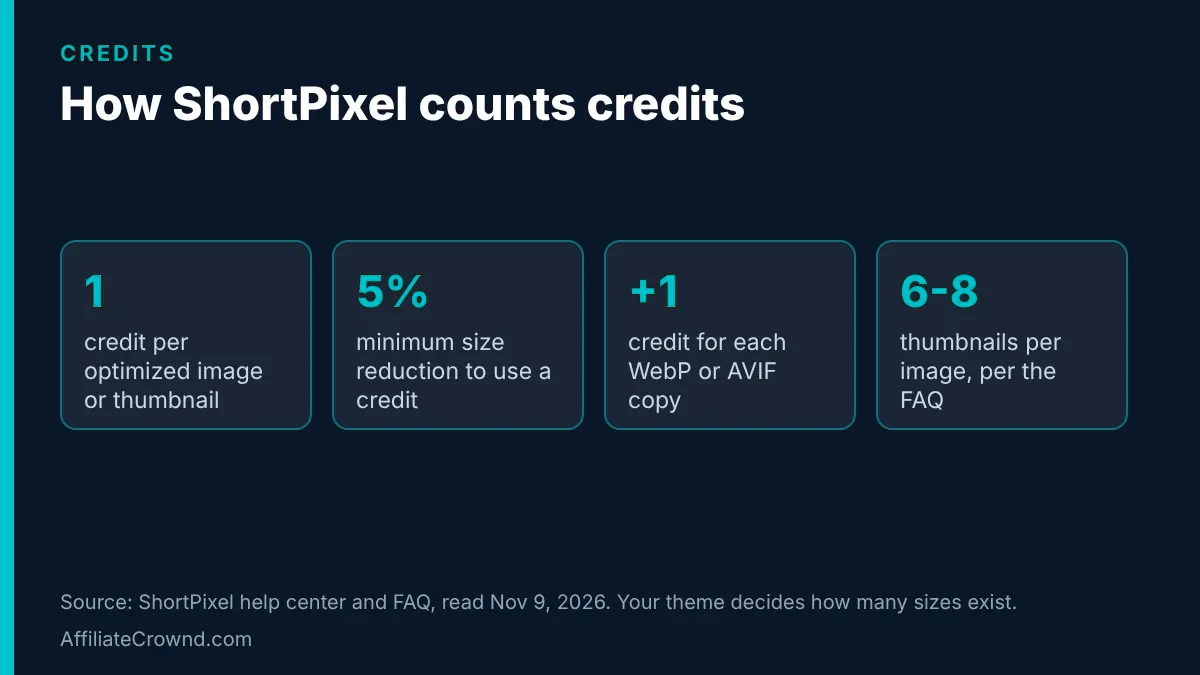
🔍 In Practice: one uploaded photo can use many credits once thumbnails and WebP copies are counted. We have not measured the exact number on a real site, so check how many image sizes your theme creates before you choose a plan.
💡 See how much you could save: start on ShortPixel’s free monthly allowance and run your most important images through it. → Try ShortPixel free Come back to this section whenever shortpixel review feels unclear.
ShortPixel Pricing: Is It Worth the Cost?
ShortPixel’s pricing is structured around credits, which suits sites that upload images in bursts instead of at a steady monthly volume.
Free plan: ShortPixel’s pages describe a free allowance of up to 100 credits per month. When the credits run out, optimization stops until the next monthly renewal or until you change plans. It is a low-risk way to test the plugin on your most important pages. Check the official pricing page for the current terms.
| Option | What ShortPixel says |
|---|---|
| Free monthly allowance | Up to 100 credits per month, renewing monthly |
| One-time credits | Credits you buy once and that never expire |
| Unlimited plan | A 30-day plan with a monthly CDN allowance; not stackable |
| Exact prices | See the official pricing page, as prices change |
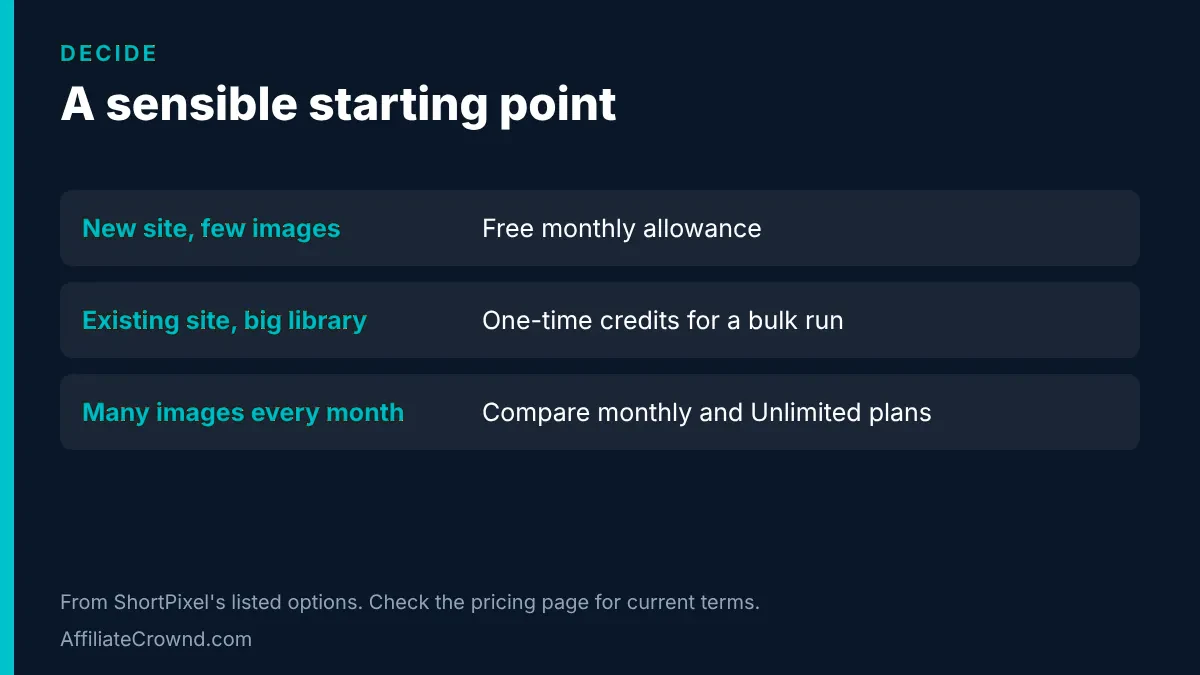
| Your situation | Sensible starting point |
|---|---|
| New site, few images | Free monthly allowance |
| Existing site, big image library | One-time credits for a bulk run |
| Publishing many images every month | Compare monthly and Unlimited options on the pricing page |
One-time credits suit a first bulk clean-up of an existing library, while a recurring plan makes more sense once you publish images regularly. Start free, measure your usage for a month, then decide. See ShortPixel’s current plans.
ShortPixel’s Key Features: What You Are Getting
Lossy, Glossy, and Lossless Compression
ShortPixel offers three compression levels so you can balance quality against file size: Lossy for the smallest files, Glossy for more preserved detail, and Lossless for no quality loss. How much smaller your files get depends on the image, so test each level on a few of your own images before you bulk-optimize your library.
Backups and Restore
ShortPixel’s FAQ says the plugin can back up your originals to a separate folder on your own server, at /wp-content/uploads/ShortpixelBackups/, and that you can restore images one by one or in bulk from the WordPress admin. That backup uses your hosting space, and it is not a substitute for a full site backup, so keep your own as well.
WebP and AVIF
ShortPixel can create WebP and AVIF versions of your images, which are modern formats designed to be lighter than older ones. Each extra version costs a credit, as explained above. Whether that trade is worth it depends on how many images you have and how your site serves them.
Where It Falls Short
Credits are easy to underestimate because thumbnails and extra formats each use one. If you upload full-resolution photos from a camera or phone, resize them to roughly the size you will display before uploading, so you are not compressing far more pixels than your layout needs. We did not find image resizing described on the pages we read, so check the plugin’s settings and ShortPixel’s documentation for what it offers. Also, no refund terms appear on the FAQ we read, so confirm them before buying a paid plan.
Quick Summary: ✅ Cloud-based compression through a WordPress plugin ✅ Free monthly allowance to test it ✅ One-time credits that do not expire ✅ Bulk optimization for existing libraries ⚠️ Thumbnails and extra formats use credits ⚠️ Check the pricing page for current plans and limits
🎯 Best For: ✅ Affiliate marketers and bloggers running WordPress ✅ eCommerce stores where product image quality matters ✅ Content sites that want lighter pages ✅ Anyone who wants a free tier to test before paying ❌ Sites on platforms other than WordPress (ShortPixel has API access, but the plugin workflow is WordPress-native) ❌ Anyone who wants a flat, size-based quota instead of credits Most beginners learn this about shortpixel review the hard way.
💡 Why we would try it first: the free monthly allowance lets you test ShortPixel on your own images at no cost, and one-time credits that never expire suit a bulk clean-up. It is not the only option, so compare it with the alternatives below and judge the results on your own pages.
Setting Up ShortPixel
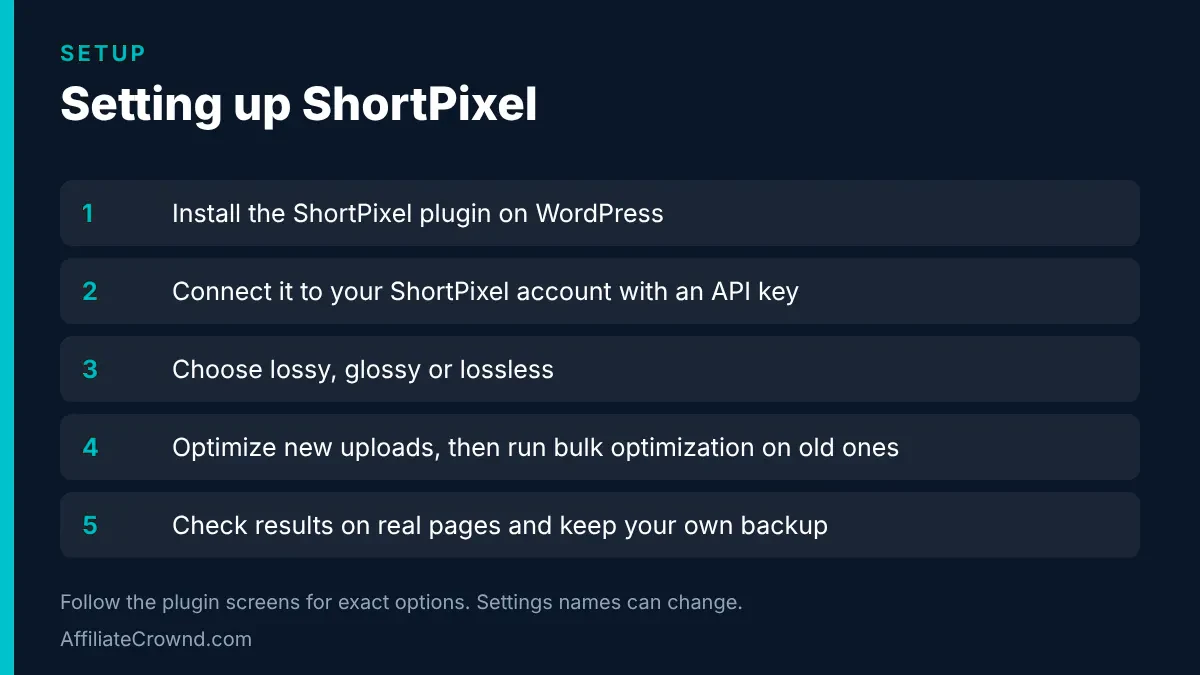
Back up your site first, then install the plugin, connect it with your API key, choose a compression level and test on a few images before running a bulk job. Follow the plugin screens for exact options, because setting names can change.
ShortPixel vs. The Competition
| Tool | How it works | Worth knowing |
|---|---|---|
| ShortPixel | Cloud compression via a plugin and your account | Free monthly allowance, plus one-time credits |
| Smush | WordPress image optimization plugin | Check its current free and paid features |
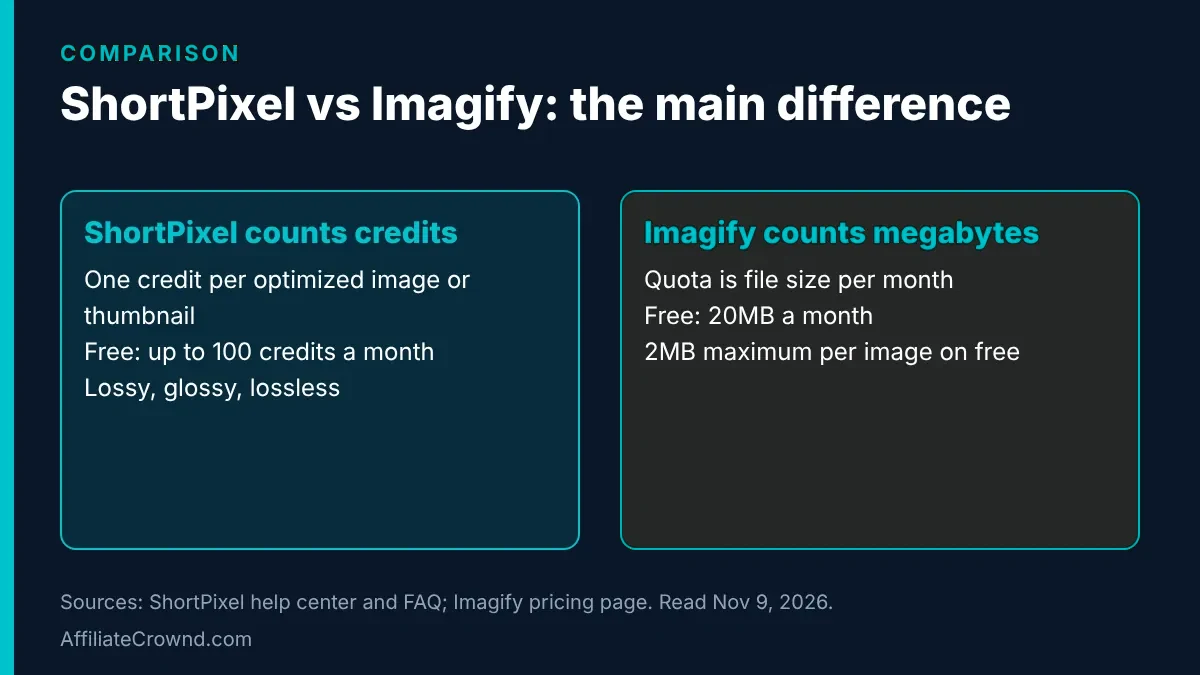
| Imagify | Cloud-based image optimization plugin | Quota is counted in megabytes, not credits |
| EWWW Image Optimizer | Can compress on your own server or in the cloud | Check its current plans and limits |
🔍 How to compare them fairly: pick two or three typical pages, run each tool on a copy of the same images, and test the pages with Google’s PageSpeed Insights before and after. We have not published head-to-head results here, so run the test on your own site and trust your own numbers.
Smush vs. ShortPixel: Smush is a widely known WordPress plugin. Compare its current free and paid features with ShortPixel’s free monthly allowance, then test both on your own images.
Imagify vs. ShortPixel: Imagify is another cloud-based option, with a free tier of 20MB per month at the time we checked. We compare plans, quotas and terms in detail in our ShortPixel vs Imagify guide.
EWWW vs. ShortPixel: EWWW Image Optimizer can compress images on your own server as well as in the cloud. If you would rather not depend on an external service, it is worth a look. Compare current options before you choose.
Do Image Optimizers Pay Affiliates? ShortPixel and Imagify Programs
If you write about image tools on your own site, the program terms matter as well as the plans. Here is what the two programs say on their official pages, read in November 2026. These are published terms, not earnings estimates, and approval rules apply.
| Tool | Commission | Tracking and payment notes |
|---|---|---|
| ShortPixel | 50% of the acquisition | One-month cookie. Recurring, payout method and minimum are not stated on the help page we read. |
| Imagify | 20% on every sale | One-time and recurring commissions for up to 12 months, through Awin. Cookie length and payout minimum are not stated on its program page. |
Sources: ShortPixel’s help article on how affiliate links work and Imagify’s affiliate program page. Both can change, so confirm the current terms before you join.
Our ShortPixel links on this site are affiliate links and are marked as sponsored. The Imagify links here are plain links, since we have not joined its program. Either way, pick the tool that fits your site and test it on your own images first. For a full side-by-side, read our ShortPixel vs Imagify comparison, and see more programs in the best affiliate programs for beginners guide.
Common Mistakes That Limit Your Image Optimization Results
Even with an optimizer installed and running, a few errors keep site owners from getting the full benefit. These are worth knowing upfront.
Uploading full-resolution originals. Compression shrinks file size, but a very large image is still more data than a browser needs at the size your layout shows it. As a rule of thumb, resize images to roughly their display dimensions before uploading.
Not checking how WebP is served. Creating WebP versions is only half the job: your site also has to serve them to browsers that support them. If you enable WebP and see no change, check the plugin’s settings and ShortPixel’s documentation for your hosting setup.
Skipping lazy loading. Image compression reduces file size; lazy loading controls when those files load. WordPress has had built-in lazy loading since version 5.5, but it is worth confirming it is active, especially if you use a caching plugin or a custom theme. The two work together.
Never checking your results. ShortPixel shows compression results for the images in your media library. Review them now and then. Images that barely shrink were often already compressed, and ShortPixel’s own rules mean an image that cannot be reduced by at least 5% does not use a credit.
Our Honest Recommendation
If you are a beginner starting your first affiliate or blog site: start on the free monthly allowance and use it on your most important pages, such as your homepage and your best affiliate reviews. Check the file sizes and how the images look before you pay for anything.
If you are running an established content site with hundreds of posts: the bulk optimizer is the quickest way to shrink an existing library. One-time credits that do not expire can suit this job. Estimate your credits first, counting thumbnails, then re-test a few key pages in PageSpeed Insights to see what changed.
If you are running a WooCommerce store: product photos need to stay sharp, so try the Glossy level first and compare it side by side with Lossy on a few products. Choose the level where the images still look right to you.
If you already use Smush or EWWW: test ShortPixel on a copy of a few pages before switching. Run the same images through both, compare file sizes and quality, and keep a full backup so you can go back.

Get Our Free WordPress Speed Optimization Checklist
Image compression is only one part of a fast, search-friendly site. Our free launch checklist walks you through the other basics in a sensible order, so you do not miss a step when you set up or tidy a WordPress site.
Get the free launch checklist →
How to Set Up Image Optimization Safely
A good setup takes ten minutes and protects you from the most common mistake, which is damaging your images with no way back.
- Back up your site, or at least your uploads folder, before you start.
- Confirm that the plugin keeps your original files, so you can restore any image later.
- Start with a moderate compression level and look at the results before you try a stronger one.
- Compress only your existing library in small batches first, so you can spot problems early.
- Switch on automatic compression for new uploads once you are happy.
How to Measure Whether It Worked
Do not trust a feeling. Pick three important pages, such as your homepage and two articles, and measure them before and after. Use a free page speed tool, run each test a couple of times, and write the results down. Look at the total page size and at how long the largest image takes to appear. If the numbers improve and the pictures still look good, the plugin is doing its job.
When Image Optimization Will Not Fix a Slow Site
Smaller images help, but they are only one piece of speed. If your pages are still slow afterwards, look at the other usual suspects: a slow host, too many plugins, large scripts, heavy fonts and a missing cache. Fix them one at a time and measure after each change. That way you learn what actually matters for your site, and you avoid paying for tools that do not solve your real problem.
- Check that images are the right size for where they appear, not just compressed.
- Use modern formats where your theme supports them.
- Lazy-load images below the first screen so the top of the page appears fast.
A Short Checklist Before You Install
Image plugins are simple, but a few minutes of care avoids headaches later. Run through this list before you click install.
- Check that your theme and your other plugins are up to date.
- Make a full backup of your site and store it somewhere other than your hosting account.
- Read the plugin settings page slowly and write down the compression level you choose.
- Decide whether you want the plugin to keep a copy of each original image.
- Note your current page speed so you can compare afterwards.
Once everything is set, process a few images first and look at them closely. Only then run the whole library. If anything looks wrong, you can restore the originals and try a gentler setting. Taking this slow approach means your readers never see a broken or blurry image, and you stay in control of the result.
Frequently Asked Questions About ShortPixel
Is ShortPixel free to use for WordPress?
Yes, ShortPixel has a free plan of up to 100 credits per month, renewing monthly. That is enough to test it on your most important pages. When the credits run out, optimization stops until the next renewal or until you change plans. Check ShortPixel’s pricing page for the current terms.
Does ShortPixel reduce image quality?
It depends on the level you choose. Lossy removes some image data to get the smallest files, Glossy preserves more detail, and Lossless reduces file size without quality loss. Test each level on a few of your own images and pick the one that still looks right to you. Because ShortPixel can back up your originals, you can restore them if you are not satisfied.
How does ShortPixel affect WordPress performance?
ShortPixel does its compression on its own servers rather than on your hosting, per how the service is described. Once images are optimized, your pages serve smaller files. If you use a caching or performance plugin, check ShortPixel’s documentation for compatibility with your setup, and test your pages after enabling it.
How many images does ShortPixel optimize per credit?
One credit covers one optimized image or thumbnail, and only when the file shrinks by at least 5%. Each thumbnail size uses its own credit, and each WebP or AVIF copy uses an extra one. You can exclude thumbnail sizes you do not need to spend fewer credits.
Is ShortPixel better than Smush for SEO?
We cannot say that either tool is better for SEO without testing on your site. Both aim to shrink image files so pages load faster, and page speed is one of many factors. Compare their current features, test both on a few pages, and keep the one that gives you smaller files without visible quality loss.
Conclusion
ShortPixel is a practical image optimization option for WordPress. You install the plugin, connect your account and let it compress new uploads, and you can run a bulk pass over your existing library. Start on the free monthly allowance, check the results on your own pages, and only then decide whether a paid plan makes sense.
Site speed is one of the things you can control on a content site, and heavy images are a common cause of slow pages. An optimizer will not fix weak content, but it removes an avoidable weakness. Keep in mind how credits are counted, keep your own backup, and judge the tool on your own images.
💡 Ready to test it on your own site? Start on ShortPixel’s free plan and see the results on your own images. → Try ShortPixel free
Want to see every tool we cover? Browse all the programs we review and compare.
Sources and Update Note
Read on November 9, 2026: ShortPixel product page, help center articles on credits and on monthly versus one-time plans, FAQ and About page; Imagify pricing page. Prices and limits change, so confirm on the vendor sites. This page will be refreshed when they do.
For official guidance, read Google’s SEO starter guide.